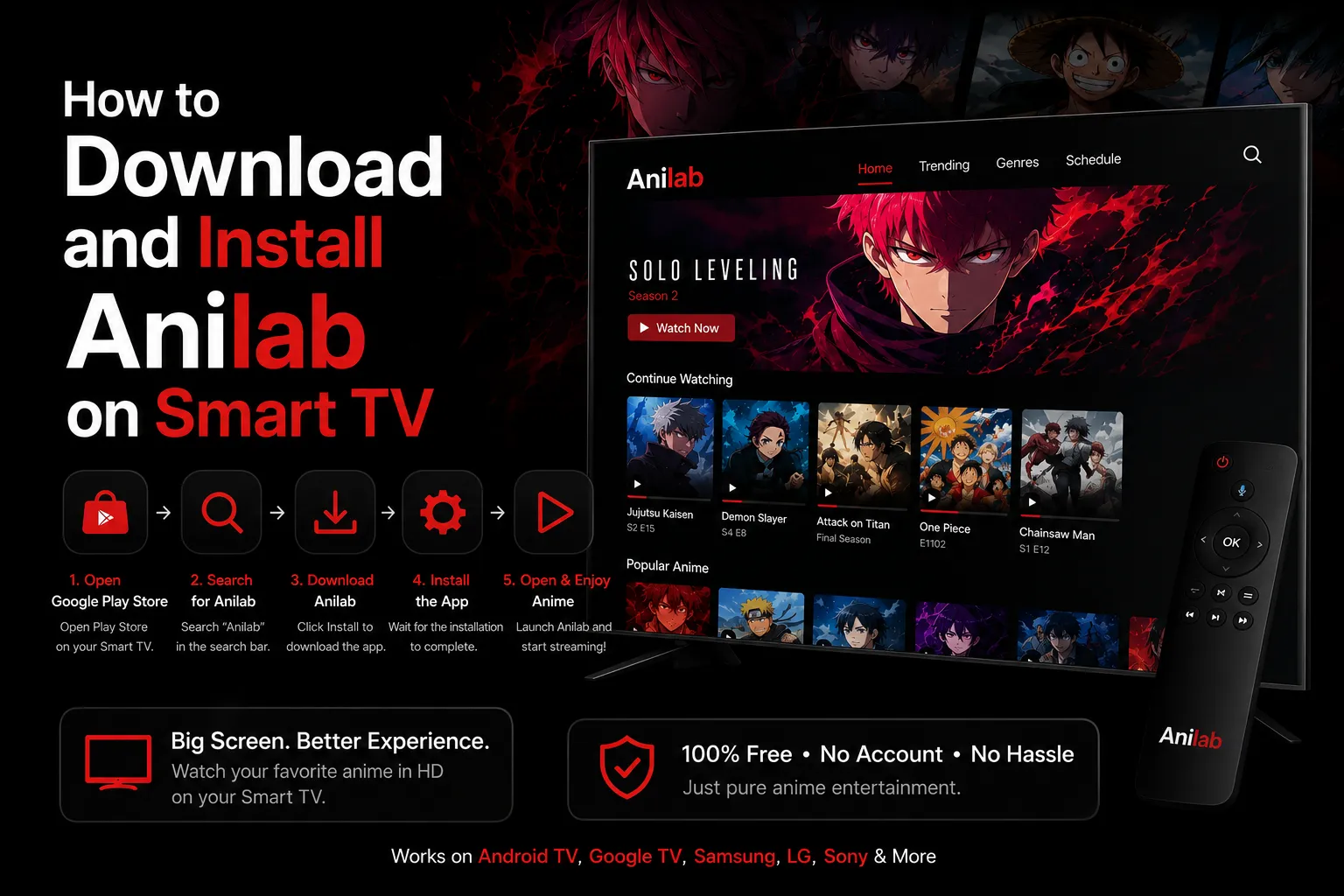
Download and Install Anilab on Smart TV
Watching anime on a small phone screen when you have a big TV at home is a waste of a perfectly good viewing experience. Most Smart TV brands lock you into their own app stores and they do not carry every app you want. Some run Android TV and can install APKs directly. Others like Samsung and LG run completely different operating systems where a standard APK file will not work. This guide covers every brand, every operating system, and every working method so you can get Anilab running on your TV screen in under five minutes.
What You Need to Know Before You Start
Before installing AniLab on your TV, it’s important to know which operating system your device uses. AniLab is an Android app, so it installs directly only on Android TV and Google TV devices. Trying to install the APK on Samsung Tizen, LG webOS, or Roku will not work because these platforms use completely different operating systems.
The easiest way to check is by opening Settings → About on your TV. If you see Android TV, Google TV, or an Android version listed, you can install the AniLab APK directly using this guide. If your TV runs Samsung Tizen, LG webOS, or Roku OS, you’ll need to follow the alternative installation method explained in the sections below.
Smart TV Brand Compatibility Chart
Find your TV brand in the table below and follow the recommended method. Every brand listed has a working solution covered in full detail in this guide.
| TV Brand | Operating System | Direct APK Install | Best Method |
|---|---|---|---|
| Sony Bravia (2016+) | Android TV / Google TV | ✓ Yes | Downloader App or USB |
| TCL Android Series | Android TV / Google TV | ✓ Yes | Downloader App or USB |
| Hisense Android Series | Android TV / Google TV | ✓ Yes | Downloader App or USB |
| Xiaomi Mi TV | Android TV | ✓ Yes | Downloader App or USB |
| Philips Android TV | Android TV | ✓ Yes | Downloader App or USB |
| Sharp Android TV | Android TV | ✓ Yes | Downloader App or USB |
| OnePlus TV | Android TV | ✓ Yes | Downloader App or USB |
| Nvidia Shield TV | Android TV | ✓ Yes | Downloader App |
| Chromecast with Google TV | Google TV | ✓ Yes | Downloader App |
| Amazon Fire TV Stick (all) | Fire OS (Android-based) | ✓ Yes | Downloader App |
| Samsung (all models) | Tizen OS | ✗ No | Android TV Box via HDMI |
| LG (all models) | webOS | ✗ No | Android TV Box via HDMI |
| TCL Roku Edition | Roku OS | ✗ No | Android TV Box or Screen Mirror |
| Hisense Roku Edition | Roku OS | ✗ No | Android TV Box or Screen Mirror |
| Vizio SmartCast | SmartCast | ✗ No | Android TV Box via HDMI |
Method 1: Downloader App (Easiest » Android TV & Google TV)
This is the fastest method and it works on any TV running Android TV or Google TV, Sony, TCL, Hisense, Xiaomi, Philips, Sharp, OnePlus, Nvidia Shield, and Chromecast with Google TV. You do not need a phone, USB drive, or computer. Everything is done directly on the TV with your remote in under three minutes.
Downloader App Installation
No phone, no USB, no computer just remote needed
Enable Unknown Sources on Your TV
Go to Settings → Security & Restrictions → Unknown Sources and turn it on. On Google TV it is under Settings → Apps → Security & Restrictions. On Sony Bravia look under Device Preferences → Security. On Xiaomi Mi TV go to Settings → System → Security. This is a one-time step and the setting stays saved.
Install the Downloader App from Play Store
Open the Google Play Store on your TV and search for Downloader. Install the one by AFTVnews. It is free and is specifically built for TV sideloading with remote-friendly navigation. It acts like a browser that pulls APK files directly from the internet to your TV.
Enter the Official Anilab Download Code
Open Downloader and enter code 4510702 in the URL bar and press Go. This pulls the Anilab TV APK directly to your device automatically. You can also type anilabapkdl.com into the bar as an alternative if the short code does not respond.
Install Anilab and Start Watching
When the download finishes, an install prompt appears automatically. Tap Install and wait a few seconds. Open Anilab from your TV apps list and tap Watch Now on the welcome screen. No account is required. You are streaming instantly.
After installation, go back into Downloader and delete the APK file to free up storage space on your TV. Anilab keeps running perfectly and the deletion only takes two seconds.
Method 2: USB Drive Install
If the Downloader app is not available on your TV’s Play Store, or if you prefer to transfer files manually, the USB method works on any Android TV or Google TV device with a USB port. This includes Sony, TCL, Hisense, Xiaomi, Philips, Sharp, and OnePlus TVs.
USB Drive Installation
Download on phone or PC, transfer to USB, install on TV
Download the TV APK on Your Phone or Computer
Visit anilabapkdl.com on your phone or computer and download the Anilab TV APK. The real file is around 15 to 16 MB. If the file you downloaded is 3 MB or 45 MB it is not the real app, tampered APKs always have a noticeably different file size.
Copy the APK File to a USB Drive
Plug a USB stick into your phone or computer and copy the Anilab APK file onto it. Any USB drive works whether it is USB 2.0 or 3.0. The file is small so the copy takes just a few seconds.
Install a File Manager App on Your TV
If your Android TV does not have a built-in file manager, install one from the Play Store. Good free options include ES File Explorer, File Commander, or FX File Explorer. Search for any of these in your TV’s app store and install it.
Open the USB and Install Anilab
Plug the USB drive into your TV’s USB port. Open the file manager, navigate to the USB storage, find the Anilab APK file, and tap it. Tap Install and wait a few seconds. Find the Anilab icon in your app drawer, open it, and tap Watch Now.
Install On Amazon Fire TV Stick
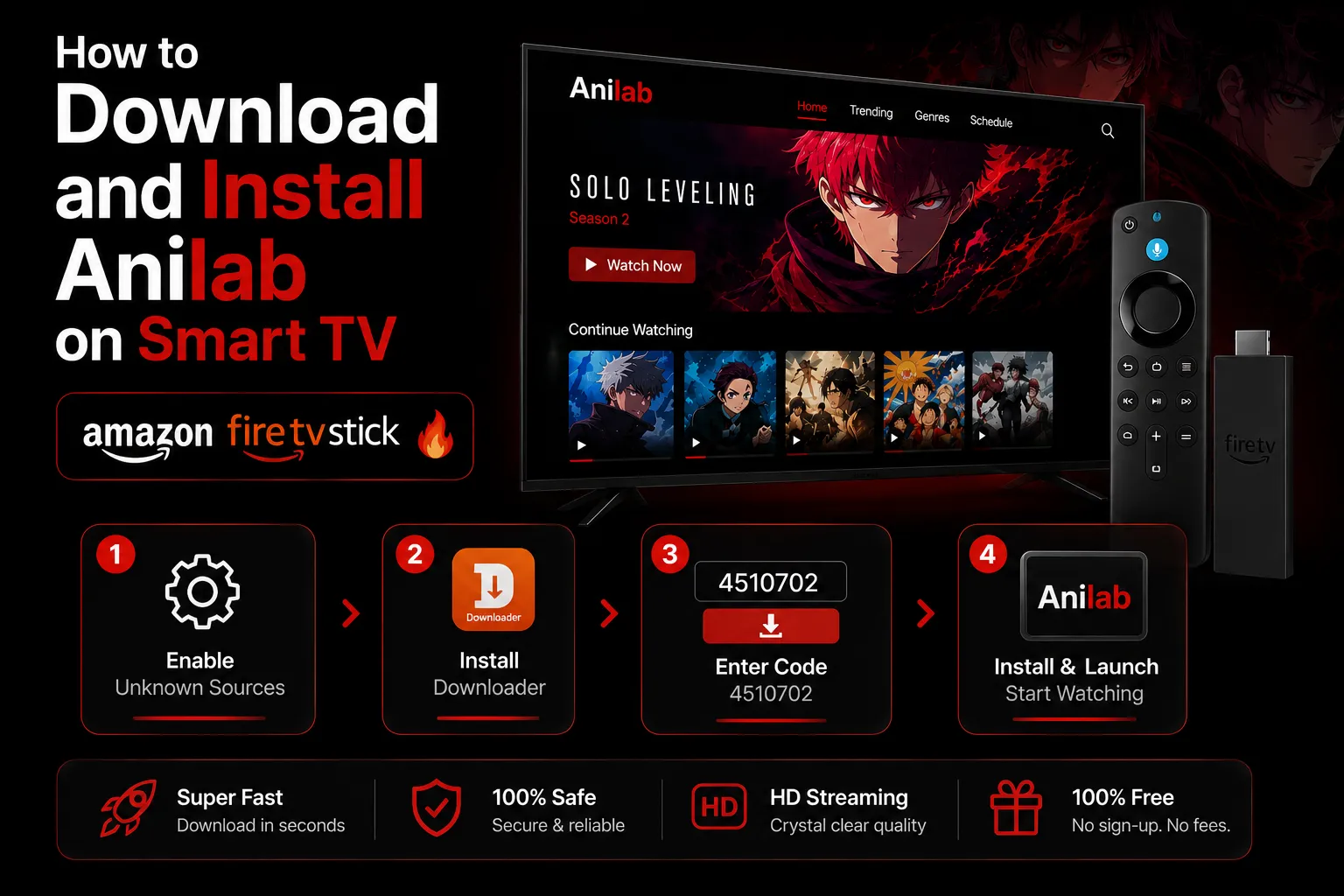
All Amazon Fire TV Stick models run Fire OS, which is built on Android. This means sideloading APKs is fully supported. The steps have a few Fire TV-specific settings but the whole process takes under four minutes and works on the Fire TV Stick Lite, Fire TV Stick 4K, and Fire TV Stick 4K Max.
Fire TV Stick » Sideload via Downloader
Works on Lite, 4K, and 4K Max models
Enable Developer Options and Unknown Sources
Go to Settings → My Fire TV → Developer Options. If Developer Options is not visible, tap on My Fire TV several times until it appears. Turn on Apps from Unknown Sources. This only needs to be done once.
Install the Downloader App from Amazon
From the Fire TV home screen, press Find and search for Downloader. Install the official Downloader app by AFTVnews from the Amazon App Store. It is free and designed specifically for this kind of sideloading on Fire TV devices.
Download Anilab Using Code 4510702
Open Downloader, enter code 4510702 in the URL bar, and press Go. Downloader fetches the Anilab APK directly to your Fire TV Stick. When the download completes an install screen appears automatically.
Install, Delete the APK, and Launch
Tap Install. After installation go back into Downloader and delete the APK file to free up storage on your Fire Stick. Find Anilab in your apps list, open it, and tap Watch Now to start streaming immediately.
Install On Samsung Smart TV
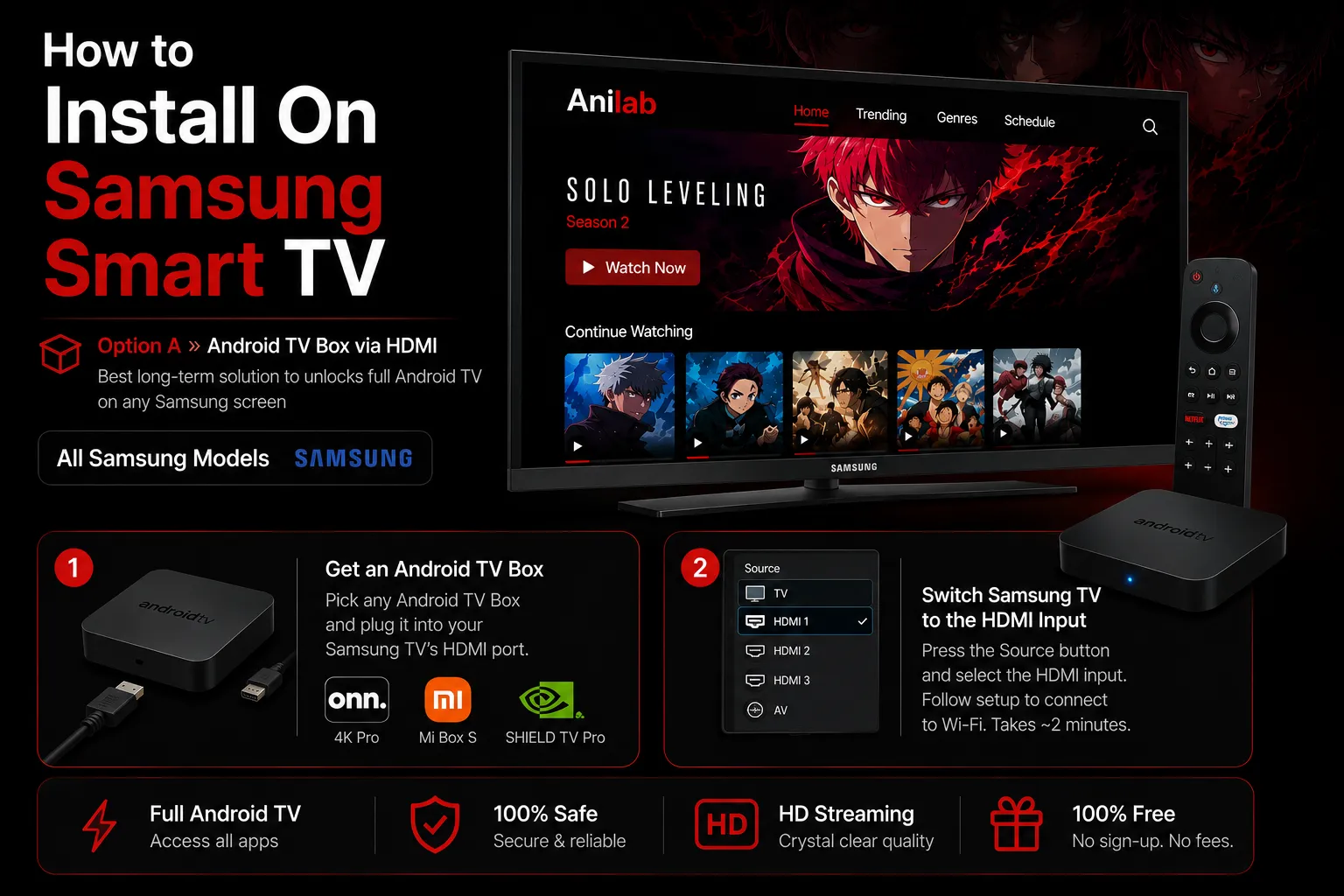
Samsung Smart TVs use Tizen OS which is a completely different platform from Android TV. Standard Android APKs do not install through Samsung’s interface. Most guides either skip this or give incorrect advice. There are two real solutions that work on every Samsung model from any year, and both are simple to set up.
Option A » Android TV Box via HDMI
Best long-term solution is to unlocks full Android TV on any Samsung screen
Get an Android TV Box
Pick up any Android TV Box and plug it into your Samsung TV’s HDMI port. The onn. 4K Pro (~$50) offers 32GB storage, 3GB RAM, and WiFi 6. The Xiaomi Mi Box S is a popular budget option. The Nvidia Shield TV Pro is the premium choice. A standard HDMI cable is included in the box.
Switch Samsung TV to the HDMI Input
Press the Source button on your Samsung remote and select the HDMI input where the Android TV Box is connected. Follow the on-screen setup to connect the box to your Wi-Fi. This takes about two minutes.
Install Anilab Using Method 1
Once the Android TV Box is set up, follow Method 1 above using the Downloader app to install Anilab on the box. Your Samsung TV screen will display everything through the HDMI connection. You get full 4K Anilab streaming on your Samsung with zero Tizen compatibility issues ever.
The Android TV Box adds a new HDMI input which does not replace your Samsung TV. Press the Source button any time to switch between Samsung’s own interface and the Android TV Box. You get both systems on the same screen.
Option B » Screen Mirror from Android Phone
No extra hardware Just mirrors Anilab directly from your phone
Install Anilab on Your Android Phone
Download Anilab from anilabapkdl.com on your Android phone and install it following the standard Android steps.
Enable Screen Mirroring on Your Samsung TV
Press the Source button on your Samsung remote and select Screen Mirroring. Your TV enters waiting mode looking for a device to mirror from.
Connect and Stream
Pull down the notification panel on your Android phone and tap Smart View, Cast, or Screen Mirror depending on your phone brand. Select your Samsung TV from the device list. Open Anilab on your phone, tap Watch Now, select your anime, and tap Play. The video appears full-screen on your Samsung TV.
Install On LG Smart TV
LG Smart TVs run webOS and cannot install Android APK files directly. The approach is the same as Samsung. Both options below work perfectly on every LG model including OLED, QNED, NanoCell, and the UP series from any year.
LG webOS » Two Working Solutions
Works on all LG OLED, QNED, NanoCell, and UP series
HDMI Android TV Box (Recommended)
Plug any Android TV Box such as the Chromecast with Google TV ($30), Mi Box S, or Fire TV Stick into an HDMI port on your LG TV. Set it up and follow Method 1 to install Anilab on the box. Switch to that HDMI input with your LG Magic Remote whenever you want to stream anime in 4K.
Screen Mirroring from Android Phone
Press the Home button on your LG remote and select Screen Share. On your Android phone, pull down the notification panel and tap Cast or Screen Mirror. Select your LG TV from the list. Open Anilab on your phone, tap Watch Now, and the video streams directly on your LG screen with no cables needed.
The Chromecast with Google TV at around $30 is the best value add-on for LG TV owners. It plugs into any HDMI port, runs the full Google Play Store, and lets you install Anilab in under two minutes using the Downloader app. It also works on Samsung and Roku TVs using the exact same process.
Install On Roku TV
Roku OS does not support APK files and the Roku Channel Store does not carry Anilab. However if you own a TCL Roku Edition, Hisense Roku Edition, or any Roku stick you have the same two options as Samsung and LG owners. Both work perfectly without replacing your TV.
Roku TV » Two Working Methods
Works on TCL Roku, Hisense Roku, and all Roku stick devices
Android TV Box via HDMI
Connect an Android TV Box such as the Mi Box S, onn. 4K Pro, or Nvidia Shield to one of the HDMI ports on your Roku TV. Follow Method 1 to install Anilab on the box. Switch to that HDMI input any time you want to stream anime. You get full 4K Android TV capability on that input.
Cast from Android Phone
Install Anilab on your Android phone from anilabapkdl.com. Download a casting app. Open the casting app, tap the Cast icon, then tap Scan Active and select Roku from the discovery options. Open Anilab, tap Watch Now, choose your show, and tap Play. The stream mirrors to your Roku TV screen.
How Anilab Looks and Performs on Your TV Screen
Most streaming apps built for phones look terrible on a large TV. The layout stretches, text goes blurry, and touch-based menus break completely with a remote. Anilab’s TV version was purpose-built for large displays with full D-pad navigation and a layout that scales correctly at any screen size. Nothing is cropped, nothing is stretched, and every button is reachable with just your remote.
Remote-First Navigation
D-pad to browse, OK to select, Back to go back. No mouse, keyboard, or touchscreen needed at any point in the app.
TV-Optimised Layout
The interface was redesigned for large screens. Text and thumbnails scale correctly at all sizes without distortion or cropping.
Sub and Dub Switching
Switch between subbed and dubbed with a single button press inside the player. No menus needed. Works mid-episode.
Full Subtitle Controls
Change font size, colour, background opacity, and position on screen with your remote during playback without pausing.
Alternate Source Switching
If one stream buffers, switch to an alternate source without leaving the player. This eliminates the buffering problem entirely.
Daily Content Updates
Currently airing anime appears on Anilab within 24 hours of the original Japanese broadcast date every single day.
Troubleshooting Common Problems
Most installation issues have one simple cause. Here is every common problem and the exact fix so you can get back to streaming without wasting time guessing.
| Problem | Likely Cause | Fix |
|---|---|---|
| App not installing | Unknown Sources not enabled | Settings → Security → enable Unknown Sources for the installer |
| App installs but will not open | Corrupted file or wrong APK version | Uninstall, redownload the TV version from anilabapkdl.com, reinstall |
| Constant buffering | Slow or 2.4GHz Wi-Fi connection | Switch to 5GHz Wi-Fi or connect the TV box to Ethernet |
| Crashes after 90 minutes | Outdated version of Anilab | Update to version 1.1.3 or newer this specific bug is fixed |
| Content unavailable in region | Geographic content restriction | Connect to a trusted VPN server in Japan, US, or UK |
| Remote does not work in app | Phone APK installed instead of TV APK | Uninstall and download the dedicated TV version from the official site |
| Poor video quality | Congested 2.4GHz network band | Move closer to your router or use a direct Ethernet connection |
| Screen mirroring drops out | Phone and TV on different Wi-Fi bands | Connect both devices to the same network and same frequency band |
Delete the APK file after every installation to keep storage clean. Clear the Anilab cache through Settings every few weeks. Always update to the latest version when available as each update improves stability and expands the content library.
Frequently Asked Questions About Anilab on Smart TV
Similar Posts
How to Use Anilab Without Creating an Account
Complete Guide How to Use Anilab Without Creating an Account This guide helps you to use Anilab Without creating an Account. Most anime fans are tired of being forced to sign up just to watch a single episode. You click on a show, get excited, and then a registration wall stops you in your tracks….
Download AniLab for Mac – Install on MacBook & iMac Guide
Complete Mac Installation Guide Download and Install Anilab on Mac Anilab is an Android app and macOS does not run Android applications natively. But that does not mean you are out of luck. Every Mac model from MacBook Air to Mac Studio has a working method to get Anilab running at full quality with sub…